Table of Contents #
The Settings section allows you to fully control how Postivy AI generates, optimizes, and publishes your content. You can access it from your WordPress dashboard under Postivy AI → Settings.
Basic Settings #
The Basic Settings section allows you to configure your core AI provider and content generation preferences.
You can access it by navigating to Postivy AI → Settings → Basic Settings.
AI Provider #
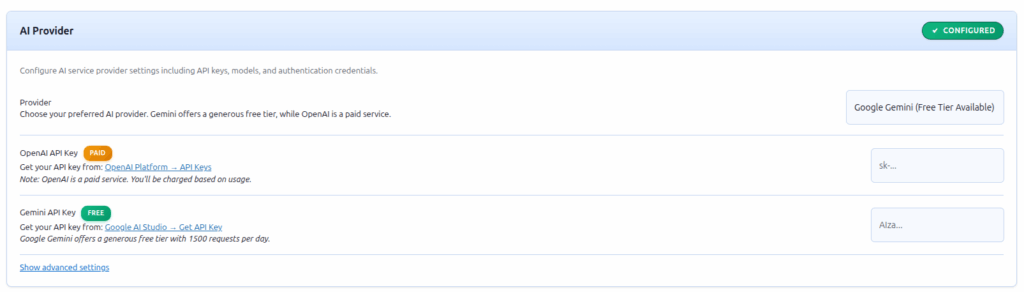
This section defines which AI engine Postivy AI will use for generating content.
Provider Options #
You can select between:
- OpenAI – a paid service using GPT-based models.
- Google Gemini – a free option with up to 1500 requests per day via Google AI Studio.
Configuration Fields #
- Provider
Choose your preferred AI provider from the dropdown menu.
Example: Google Gemini (Free Tier Available) - OpenAI API Key (Paid)
Enter your OpenAI secret key from OpenAI Platform → API Keys.
Required for text and image generation if using OpenAI. - Gemini API Key (Free)
Obtain your key from Google AI Studio → Get API Key.
Allows free access for up to 1500 text requests per day. - Google Cloud Project (Optional)
Only needed for AI-generated featured images (Imagen 3.0).
You can link your Google Cloud project here or leave it empty if not required.
Advanced Settings #
Click Show advanced settings to configure model preferences.
OpenAI Model
Select your preferred model version.
Examples:
- gpt-4o
- gpt-4o-mini
- gpt-5
Gemini Model
Choose which Gemini model to use.
Examples:
- gemini-2.5-flash
- gemini-2.5-pro
Content Generation #
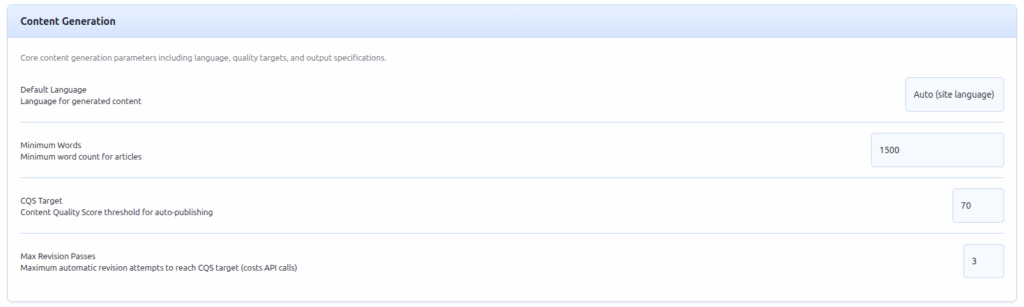
These options control how Postivy AI generates articles and enforces quality.
Default Language
Sets the language for generated content.
Options include:
- Auto (site language)
- English
- Indonesian
- Other languages supported by your site
Minimum Words
Defines the minimum length for generated articles.
Default value: 1500 words
CQS Target (Content Quality Score)
Sets the minimum quality score for automatic publishing.
Default value: 70
If the score is below the threshold, the article will not auto-publish.
Max Revision Passes
Controls how many times AI will revise an article to meet the CQS target.
Default: 3
Maximum allowed: 6
Content Engine #
The Content Engine is the core of Postivy AI. It manages how your content is researched, written, and optimized before publishing.
You can configure each module to match your site’s goals and workflow.
Topic Research & Keywords #

Organize your content strategy through structured topics.
Topics help guide the AI toward the right search intent and ensure keyword relevance.
Manage Topics #
Create and organize keyword topics with intent, descriptions, and related keywords.
Use them to guide the AI’s understanding of your content niche.
Monitor how many topics are currently configured.
Manage Keyword Topics
Currently configured: 0 topics
Brand Identity #

Inject your brand’s unique tone, style, and messaging into every piece of generated content.
This ensures all articles reflect consistent branding across your website.
- Enable Brand Identity
Activates brand consistency for all generated content. - Brand Voice Prompt
Describe your brand tone (for example: “friendly and expert” or “minimalist and factual”). - Auto-Derive from Existing Posts
When enabled, the AI learns your writing style from your published articles automatically.
Automatic Thumbnail Generation #

Automatically generate visually appealing featured images using AI.
This feature ensures every article includes a relevant and professional thumbnail image.
Supported Providers #
- OpenAI (DALL·E 3)
- Google Gemini (Imagen 3.0)
The plugin automatically uses the correct provider based on your AI configuration.
- Generate Featured Images
Enable this to automatically create and attach featured images to new articles.
Internal & External Links #

Enhance SEO and user navigation by automatically inserting relevant links into articles.
This improves topical depth and supports internal linking strategies.
- Auto-Insert Links
Automatically add both internal and external links during article generation. - Max Internal Links
Set the maximum number of internal links (links to your own posts).
Default: 3 - Max External Links
Set the maximum number of external references per article.
Default: 2 - Trusted External Sources
Add domains you trust for external references.
Each source should be added on a new line.Examples:
https://blog.google/
https://www.semrush.com/blog/
https://moz.com/blog/
Advanced Settings #
Advanced Settings provide performance tuning, error handling, and diagnostic tools to improve stability and reliability, especially useful for users running Postivy AI on different hosting environments.
Advanced Features #
Optimize performance and prevent timeouts when working with different AI providers or limited hosting resources.
- Safe Mode (Disable Add-ons)
Turns off all additional modules (e.g., link builder, brand voice) for lightweight operation.
Recommended when troubleshooting plugin conflicts or resource issues.
Default: Off - Cloudflare Timeout Retry
Automatically retries AI requests if your hosting environment triggers a 524 Cloudflare timeout.
Prevents post generation failures caused by temporary network or proxy timeouts.
Default: On (524 error fix enabled)
Ops & Debug #
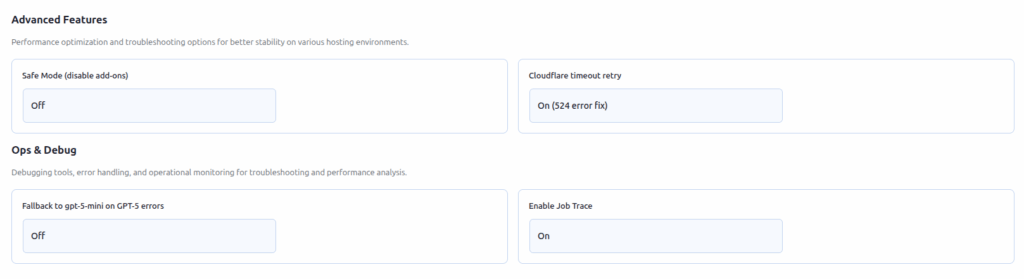
Provides deeper visibility into plugin performance, logs, and AI API operations for developers and administrators.
- Fallback to gpt-5-mini on GPT-5 Errors
Automatically switches to GPT-5-Mini when GPT-5 encounters connection or timeout errors.
Ensures uninterrupted content generation with slightly reduced model performance.
Default: Off - Enable Job Trace
Logs all API calls, job IDs, and generation metadata for debugging and performance analysis.
Recommended only when diagnosing slow or failed AI jobs, as it may increase database load.